> ## Documentation Index
> Fetch the complete documentation index at: https://docs.bettership.ai/llms.txt
> Use this file to discover all available pages before exploring further.
# Capture something live
> Keep notes and a transcript from a workshop, meeting, or video.
A capture keeps the transcript, notes, and images you collect while watching, listening, or attending. The saved capture becomes something you can return to and discuss in Bettership.
## Before you start
Be ready for audio collection to begin when you choose **Live capture**. The desktop app needs macOS permissions for microphone and system audio. You can check their status under **Settings → App preferences**.
Only record material you're allowed to capture. When other people are involved, make sure you have the permission needed to record them. Transcripts keep what was said, including names and other personal details.
## During the capture
1. Choose **Live capture** in the desktop app's header.
2. Add a title and write notes in the capture panel. You can also choose a collection.
3. Use **Screenshot** to keep an image, or **Watch window** to choose a window whose changing content you want to capture.
4. Choose **Pause** when you want recording to stop temporarily. The status changes to **Paused**. Choose **Resume** to continue.
Watch window applies to the window you select. It doesn't mean every window is being watched.
## Finish and review
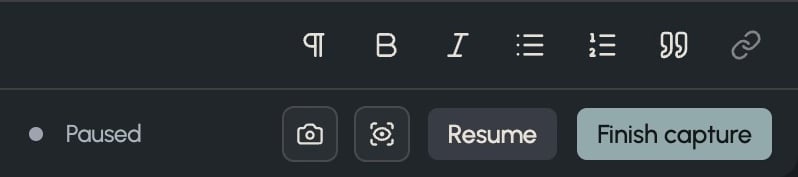 From the paused capture, choose **Finish capture**. Keep Bettership open while the recording is being saved. The preparation view shows the work that remains, such as transcription and summary preparation.
When the capture is ready, review its transcript and summary. You can find it again using the search box at the top of the app. If no speech was detected, Bettership can prepare a summary from your notes and says so above the summary. Add or correct your notes where you need more context.
## Where the agents help
You start and control recording in the desktop app. An agent conversation doesn't grant recording permissions or replace those controls.
Once the capture is saved, ask Scout about its contents, ask Coach to work through an idea, or ask Maker to use it in a reusable prompt.
**Next:** [Read a resource](/learn/read-a-resource)
This documentation is built and hosted on [Mintlify](https://mintlify.com), a developer documentation platform.
From the paused capture, choose **Finish capture**. Keep Bettership open while the recording is being saved. The preparation view shows the work that remains, such as transcription and summary preparation.
When the capture is ready, review its transcript and summary. You can find it again using the search box at the top of the app. If no speech was detected, Bettership can prepare a summary from your notes and says so above the summary. Add or correct your notes where you need more context.
## Where the agents help
You start and control recording in the desktop app. An agent conversation doesn't grant recording permissions or replace those controls.
Once the capture is saved, ask Scout about its contents, ask Coach to work through an idea, or ask Maker to use it in a reusable prompt.
**Next:** [Read a resource](/learn/read-a-resource)
This documentation is built and hosted on [Mintlify](https://mintlify.com), a developer documentation platform.